
How smart apps are reshaping modern business operations.
Smart apps are reshaping modern business operations by streamlining workflows.
Give your patients a seamless digital experience with a custom mobile app carrying your clinic's name, logo, and branding.
A complete patient engagement platform designed for healthcare providers.
Launch an iOS and Android app with your own logo, colors, and clinic identity.
Allow patients to book, reschedule, and manage appointments with ease.
Maintain patient records and interactions from a centralized dashboard.
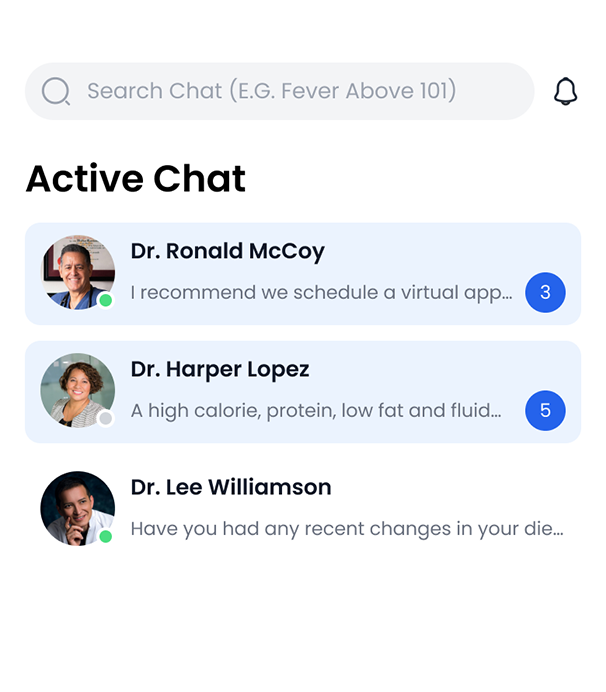
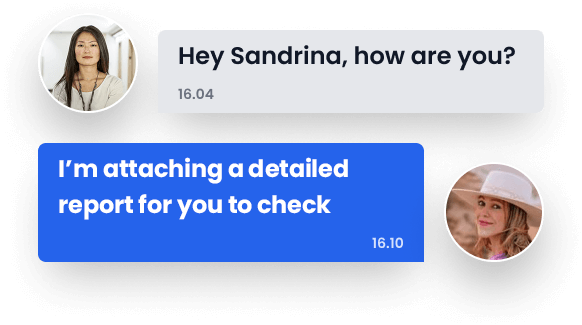
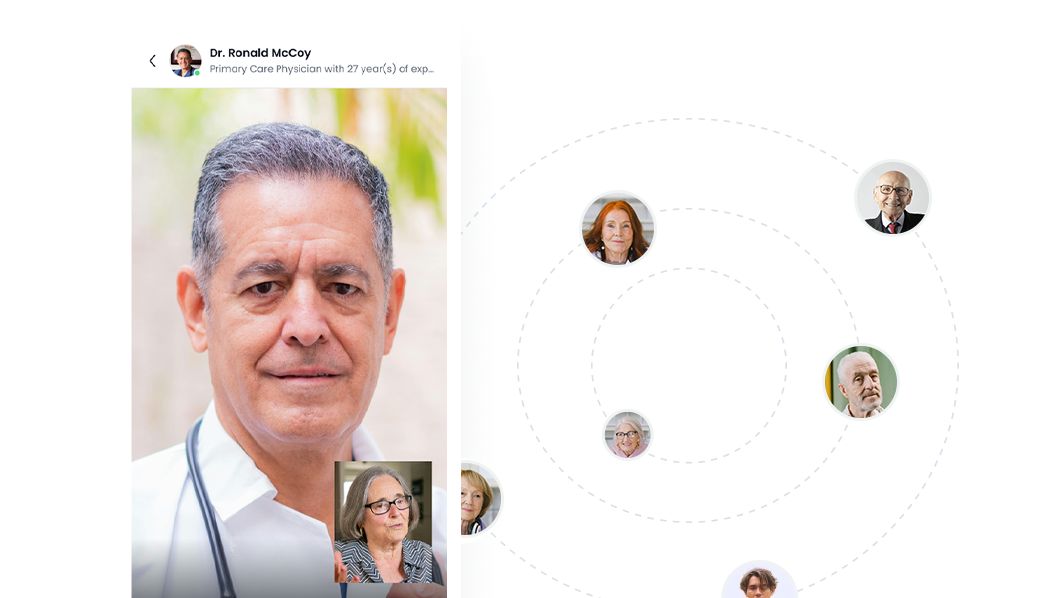
Connect with patients through secure chat and virtual consultations.
Reduce no-shows with automated reminders and updates.
Monitor appointments, patient activity, and clinic performance.
Whether you're an independent practice, specialty clinic, medical center, or healthcare network, MediApp helps you create a professional digital experience that patients trust.
Provide convenient booking, communication, and healthcare access from one platform.
Build stronger recognition with a dedicated mobile app carrying your clinic's identity.
Automate scheduling, reminders, and patient management tasks.
Our infrastructure grows alongside your clinic and patient base.
01
Schedule a call and Share your requirements with us.
02
Create your profile to unlock endless possibilities.
03
Ready to take control? Customize your brand color, manage clinic hours etc.
04
Your app is live on stores. You're ready to go!
01
Schedule a call and Share your requirements with us.
02
Create your profile to unlock endless possibilities.
03
Ready to take control? Customize your brand color, manage clinic hours etc.
04
Your app is live on stores. You're ready to go!
Manage Anywhere. Anytime.
Manage your clinic from a single, easy-to-use dashboard. Update branding, manage appointments, communicate with patients, and track performance without technical expertise.
Explore practical tips, industry insights, and success stories to help your business scale with confidence.
Smart apps are reshaping modern business operations by streamlining workflows.

Introduction Lorem ipsum dolor sit amet consectetur. Diam consectetur suspendisse dolor quam consectetur amet enim. Adipiscing tortor pretium pellentesque fames...
Quick answers for patients, doctors, and clinics using CureMe
CureMe is a healthcare app that helps patients discover verified doctors, view their profiles, and connect with them more easily.
CureMe is designed for patients, doctors, clinics, and other supported healthcare professionals.
Availability depends on your region and the platforms currently supported. Check your device's app store for the latest version.
No. CureMe should not be used for medical emergencies. Contact your local emergency services immediately if you need urgent help.
Download CureMe, select the patient option, and follow the instructions to register and verify your account.
Search by the doctor's name, specialty, clinic, location, or unique CureMe handle.
A CureMe handle is a doctor's unique username, such as @dr.sara. Enter it in the app's search field to find the doctor directly.
Open CureMe's QR scanner and point your camera at the code displayed in the clinic. The doctor's profile will open automatically.
Yes, if the QR code supports standard camera scanning. Otherwise, use the scanner inside the CureMe app.
Check the spelling of the doctor's name or handle. The doctor may also have a private, incomplete, or unavailable profile.
Verified professionals display a verification indicator on their CureMe profile.
If this feature is available, tap the save or favorite icon on the doctor's profile.
Open the doctor's profile, select an available appointment option, choose a suitable time, and confirm your booking.
Open your appointment details and choose the available cancellation or rescheduling option. Clinic policies may apply.
Check your notifications, email, and spam folder. You can also review the appointment status inside the app.
Communication options depend on the services enabled by the doctor or clinic.
No. Response times vary, and CureMe messaging should not be used for urgent medical concerns.
Register as a healthcare professional, provide the requested professional information, and complete the verification process.
Verification helps patients identify legitimate healthcare professionals and increases trust in the platform.
Open your profile settings and choose an available handle that is easy for patients to recognize and remember.
If handle changes are supported, update it in your profile settings. Existing printed materials may need to be replaced afterward.
Open your doctor profile tools and select the QR poster option. You can then preview and print the poster for your clinic.
Place it somewhere visible, such as reception, the waiting room, the consultation desk, or near the clinic entrance.
The patient is directed to your CureMe profile, where they can view the information and services you have made available.
Yes. Return to the QR poster section of your account and select the print or download option.
Normally, profile updates do not change the QR code. Changing your handle or account status may affect it, depending on CureMe's configuration.
CureMe uses appropriate safeguards to protect account and profile information. Review the Privacy Policy for details about how information is collected and handled.
Doctors can only access information permitted by the app, the patient's choices, and applicable privacy rules.
No. Patients only see the professional information published on the doctor's profile.
Open the profile, select the report option, and provide the requested details for review.
Use the block or report option available within the relevant profile, message, or account menu.
Open account settings and select the account-deletion option. Some information may be retained when required by law or legitimate record-keeping obligations.
Make sure the code is well lit, fully visible, undamaged, and inside the camera frame. You can also search for the doctor using their CureMe handle.
Check that notifications are enabled in both CureMe settings and your device settings.
Select Forgot password on the sign-in screen and follow the instructions sent to your registered email address or phone number.
Close and reopen the app, check your internet connection, and install the latest version. If the issue continues, contact CureMe Support.
Open the Help or Support section inside the app and submit a support request.
Join the growing number of healthcare providers delivering a modern patient experience through their own branded mobile application.